Codex Accounts
ProductivityFeb 2026Know which OpenAI account still has Codex quota — without leaving your menu bar.
Why I Built This
The Codex CLI has two rate limits: a rolling 5-hour window and a weekly window. When you hit either one, requests just start failing. If you're juggling multiple OpenAI accounts (personal, work, side project), it's basically impossible to know at a glance which one still has quota left.
I kept running codex auth, switching accounts, running a command, hitting a rate limit, switching again. Rinse and repeat. There was nothing in the market that solved this, so I built a free menu bar app for it.
What It Does
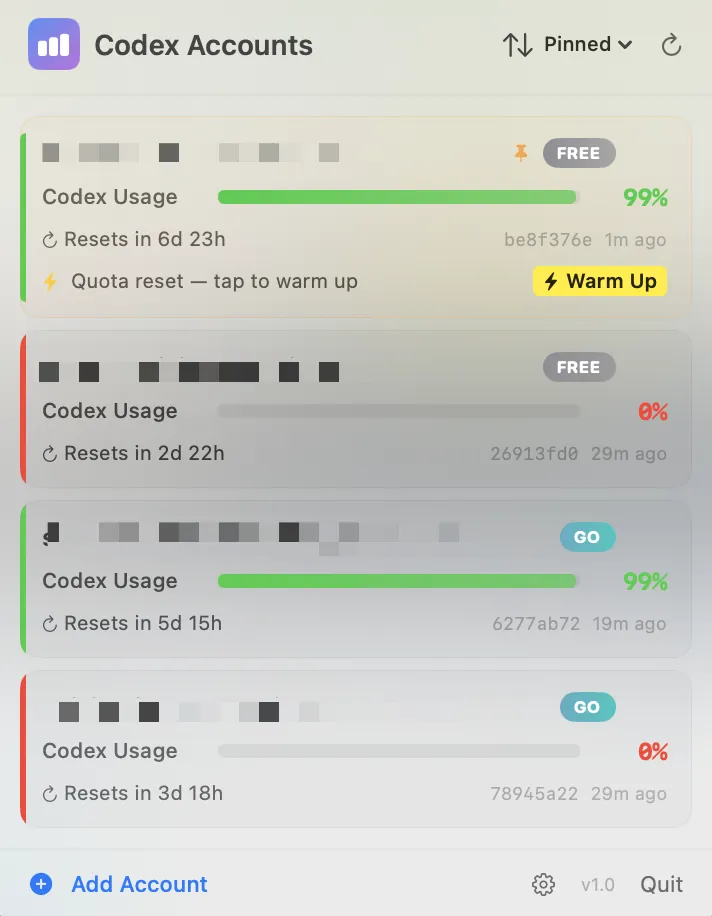
Codex Accounts sits in your macOS menu bar and shows the lowest remaining usage percentage across all your accounts. Click the icon and you get a card for each account with:
- Both usage meters (5-hour and weekly) with time-to-reset countdowns
- Credit balance if your plan has one
- Plan type so you can see what you're working with
Auto-Detects Account Switches
The app watches ~/.codex/auth.json. When you run codex auth to switch accounts, it picks up the new account automatically. No manual configuration needed.
Background Token Refresh
Tokens refresh in the background before they expire, so the usage data is always current. No stale numbers.
Adding More Accounts
Click "Add Account" in the popover, then in your terminal run codex logout followed by codex auth. The app watches the auth file and adds the new account automatically.
Quick Start
- Download the DMG from GitHub Releases
- Make sure you have Codex CLI installed (
npm i -g @openai/codex) - Authenticate at least one account via
codex auth - Launch the app — it appears in your menu bar
Privacy
The only network requests go to chatgpt.com for usage numbers and auth.openai.com for token refresh. No analytics, no telemetry. Account data is stored locally in ~/Library/Application Support/CodexAccounts/accounts.json. Nothing else leaves your machine.